How to send an automatic reminder message on WhatsApp
Content
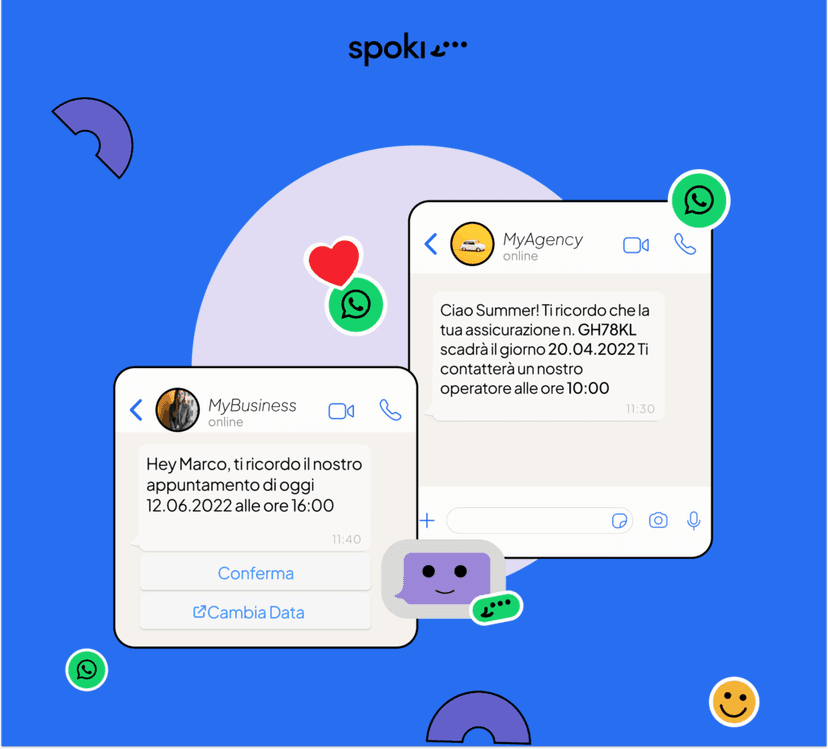
One of the most requested and used features of the Spoki platform is sending a reminder message to customers on WhatsApp.
To implement this automation, you need to use “condition on date and time” as the automation trigger. Through this functionality, it is possible to create an automation that automatically sends a reminder message to the customer at a specific date and time indicated in a dynamic field created ad hoc in the contact’s profile.
For all activities that manage appointments, courses, deadlines, installments, etc., this feature proves useful, if not essential, for communicating or reminding about an event a few minutes, hours, or days before it occurs.
For example: a customer has signed up for a webinar. Five minutes before it starts, you can automatically send them a reminder message, reminding them of the upcoming webinar and providing a link to directly access the course.
The same applies to insurance companies, medical practices, those operating in the beauty sector, and those who sell online courses.
Reminding about the upcoming event increases the participation rate and consequently the conversion.
Let’s see specifically how to create automation based on “Condition on Date and Time“.
Emails play a very significant role in the strategy, yet only 20% of recipients open them. This figure, 20%, tells us that it is no longer possible to use only email as a means of communication with our customers for successful communication.
Step 1: Create dynamic field on Spoki
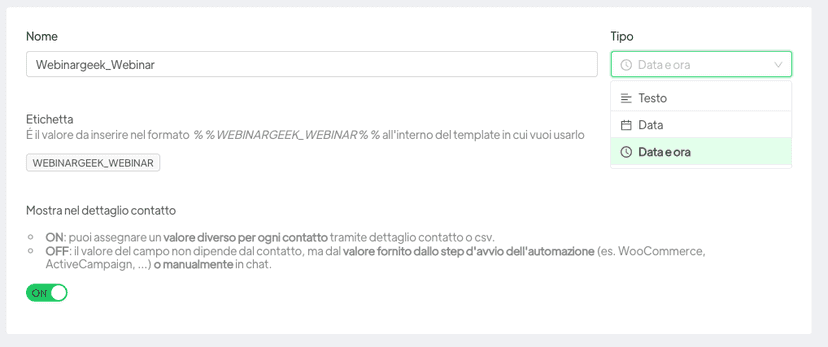
Create the dynamic field: in the “Dynamic fields” section create a new dynamic field by clicking on the “New” button at the top; enter the name and type of the field, selecting the entry “Date and Time” from the drop-down menu.
Select “ON” to show the field in the “Contact details” section.
Step 2: Create automation on Spoki and send the WhatsApp message
Create the automation: in the “Automations” section, click on “New” at the top right.
Select the “Condition on Date and Time” mode from “Add start step”.
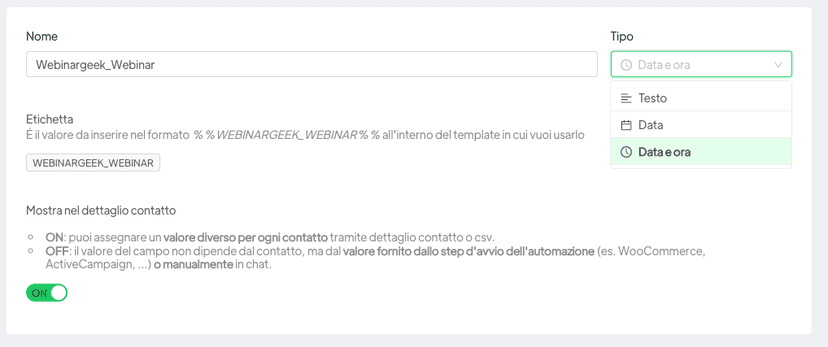
Once the trigger is selected, set the condition on the dynamic field (is, before, after) and the reference dynamic field.
In our case, we will set the dynamic field that refers to the start of the Webinar and then we will set the condition, i.e. how long before or after we plan to send the message to the recipient. In our case, we will send the reminder message 10 minutes before the start of the webinar as shown in the image below.
After setting the conditions described above, select the template pre-approved by WhatsApp.
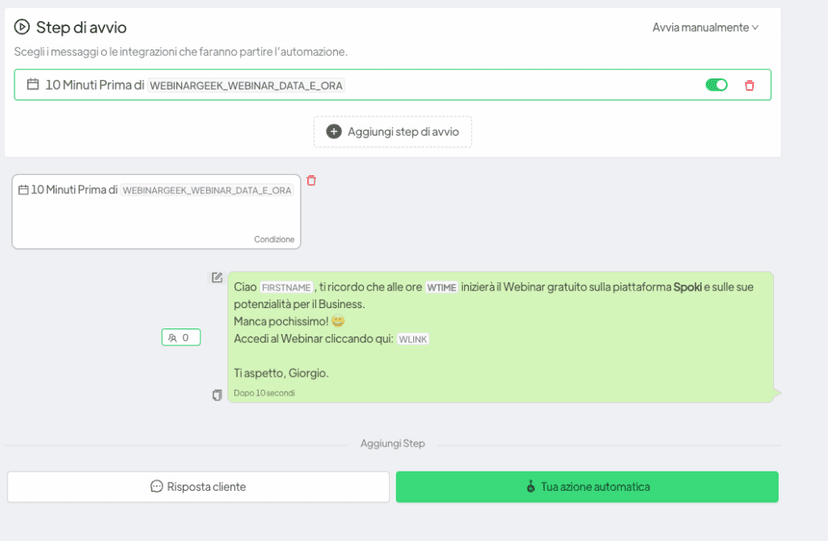
In this way, all users registered for an event, webinar, course, or near a deadline will receive a reminder message shortly before a certain event occurs. Alternatively, you can send a WhatsApp message to request post-event feedback or request a review.
The open rate of messages received on WhatsApp is about 100 percent and allows the recipient to be reminded and incentivized to participate thus increasing customer engagement.
Moreover, using this condition as the start of an automation will minimize human effort, saving the entire team time and energy.
Do you want to integrate WhatsApp Marketing into your business?
Start with a free account on Spoki and start your first campaigns with 5 € of included credit.
Or contact us to build your winning strategy together. We are waiting for you!