From Facebook to WhatsApp: How to Create a Complete Funnel to Maximize Conversions!
Content
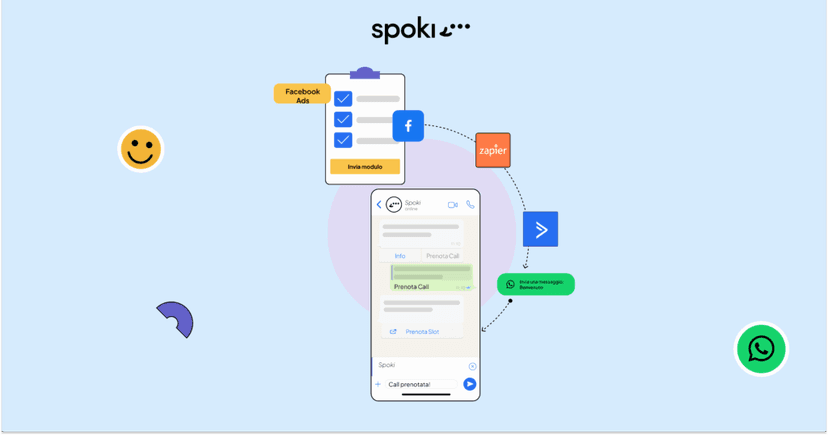
If you want to acquire new customers using Facebook and then move the conversation to WhatsApp, you’re in the right place.
In this article, I will show you how we connected WhatsApp to Facebook forms using Active Campaign automations.
The strategy we will see, includes:
- intercept potential customers on Facebook via contact form
- manage leads on Active Campaign via automations
- automatically send one or more messages to the customer’s WhatsApp number.
The goal is to move the user from Facebook to WhatsApp, a more intimate and direct channel, and leverage the attention of the moment to encourage the user to take action towards the company.
An analysis of the data collected during the testing phase showed that shifting focus to the WhatsApp channel produces an increase in the number of chat interactions and a 37% increase in conversions compared to emails.
Tools used:
Facebook ADS: contact acquisition campaigns – form
Zapier
Active Campaign
Spoki
Step 1: Facebook form creation + Lead Generation Campaign
Objective: intercept a target of marketing professionals and acquire their contacts.
We created the campaign with the objective of “contacts” with 3 different creatives; all three ads highlight three advantages/benefits of using the software for the target audience.
A form with 5 closed-ended questions was created. These questions are designed to profile the contact. The final screen of the form refers to the possibility of “skipping the line” by booking a call with the account manager.
Step 2: Create the zap on Zapier
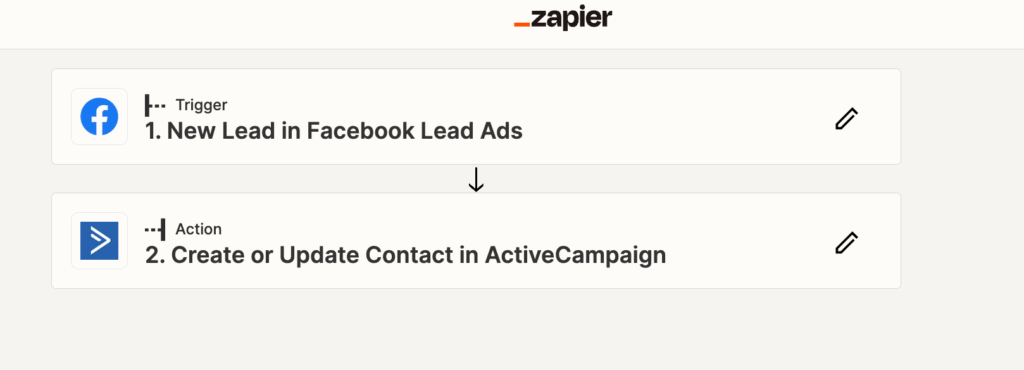
After setting up the campaign for lead acquisition, you need to use Zapier to transfer the contacts acquired from the Facebook form to Active Campaign, an automation marketing tool.
We then create a Zap using the Facebook ADS form of the campaign as a Trigger and add the second tool which in this case will be Active Campaign. It is necessary to set the zap by matching the fields used in the form in order to populate the contact fields on AC.
Step 3: Create the automation on Active Campaign
Objective: engage the user who has just filled out the form by sending a welcome message on WhatsApp.
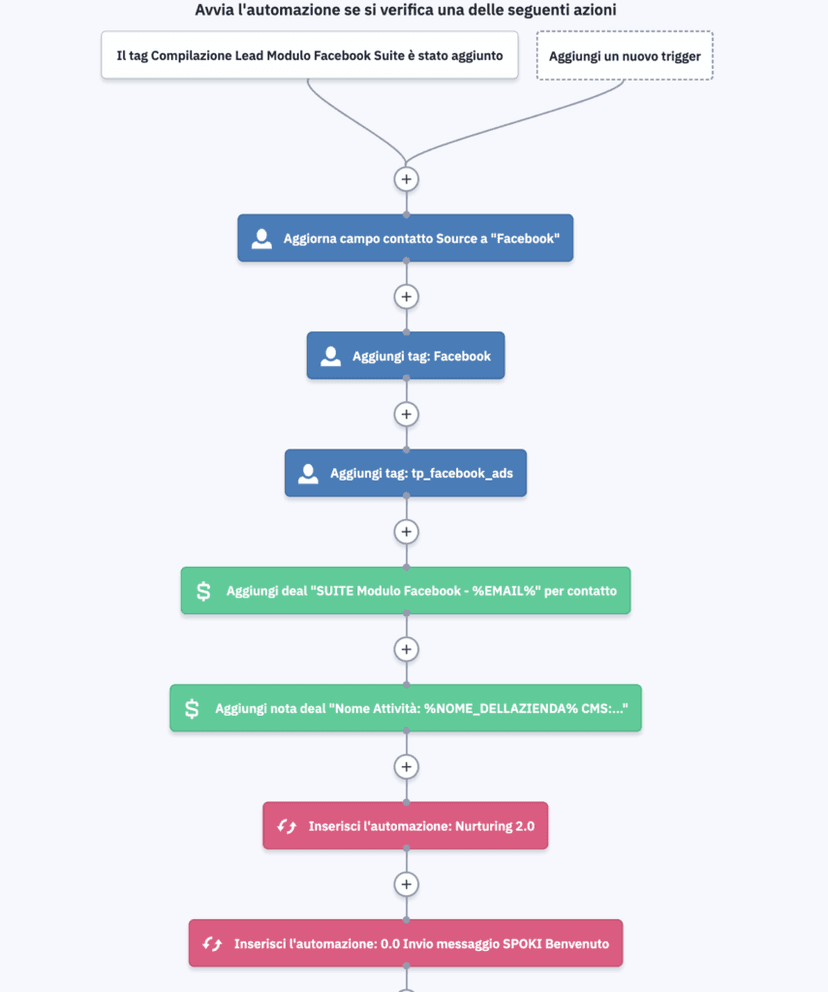
The automation created on Active Campaign includes:
- Adding the contact to a list
- Creating an offer
- Moving the contact within a stage
- Sending a WhatsApp message
- Sending an email
Within the Active Campaign automation, we insert a “Webhook” step and insert the URL of the automation that Spoki directly provides us within the step; in this way, the contact within the automation, in that precise step, will automatically receive a WhatsApp message.
Step 4: Automation creation on Active Campaign
Objective: invite the user to book a call with the Account Manager
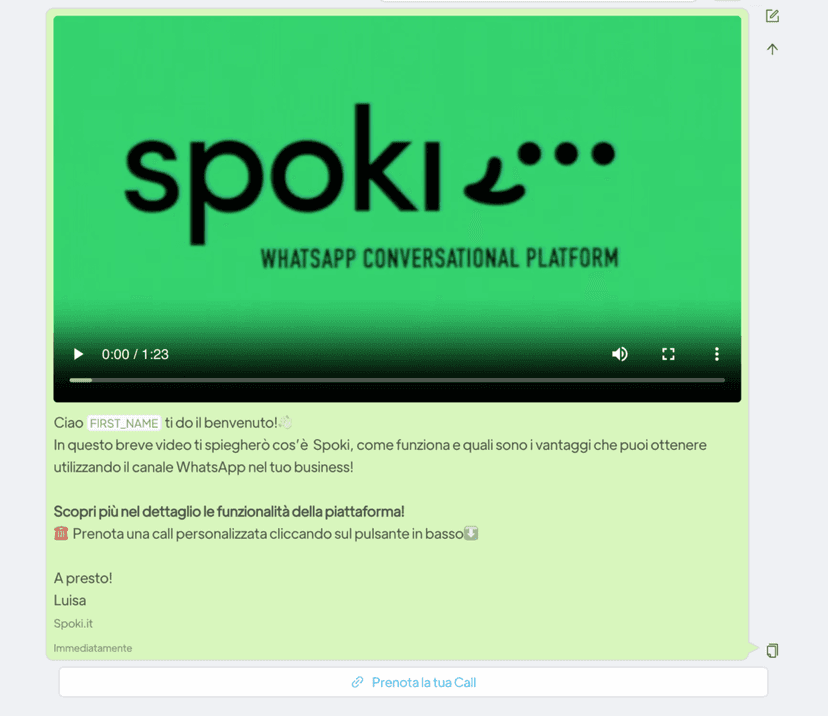
The template message created on Spoki consists of a text part, a short video and a chat button that encourages the user to book a call with the Account Manager.
We create the automation and insert the integration – Active Campaign as a starting step: Spoki will generate a URL, which we will insert in the Webhook on Active Campaign.
Once the start trigger is inserted, we insert the created template message and add a tag.
We can also decide to associate contacts with an operator, so users who interact with WhatsApp messages will be assigned to a single operator who will follow and manage activities in the chat.
Once the automation is set, it needs to be started.
Step 5: Insert a check on Active Campaign
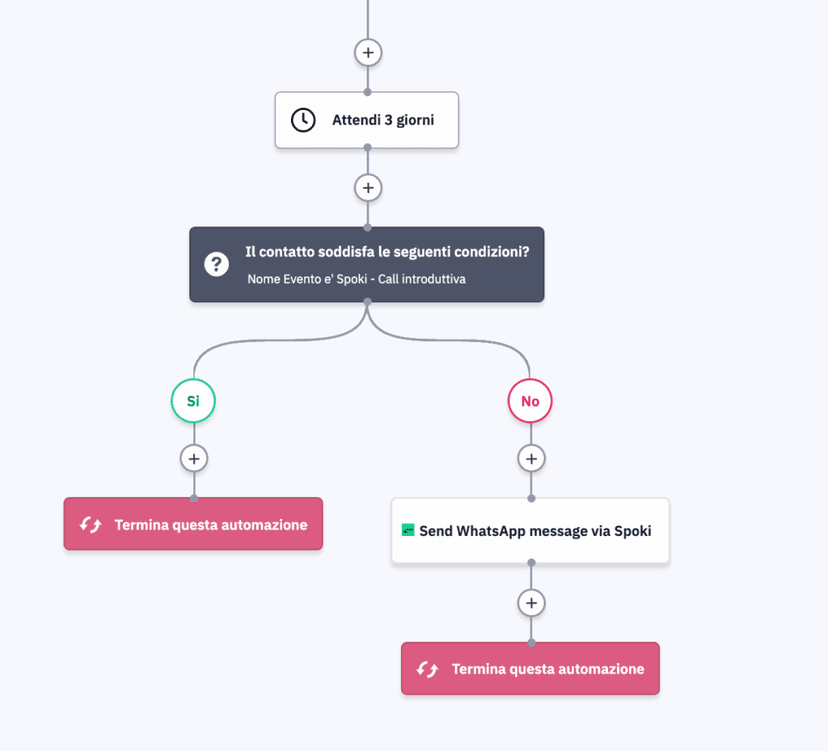
Within the first automation, we can add a “Wait” and set up logical operators to see if the contact has booked a call.
In this case, the check will be done on the tag or on the call booking event (we can use several options, in our case we will take the name of the event “Spoki – introductory call” as a variable).
Let’s insert a check after 3 days, if the contact does not have the call event, we will send a second WhatsApp message with Spoki always through App CX to remind the user to book a call with the operator.
After setting all the steps, I recommend testing the entire process starting from the Facebook form, click here to access the test section.
If you need more technical details to set up each step, you can click here.
Do you already use WhatsApp in communication with your customers?
What results have you obtained? Write to us in the comments if you like!
Do you want to integrate WhatsApp Marketing into your business?
Start with a free account on Spoki and start your first campaigns with 5 € of included credit.
Or contact us to build your winning strategy together. We are waiting for you!