How to recover an abandoned cart by creating an automation on WhatsApp
Content
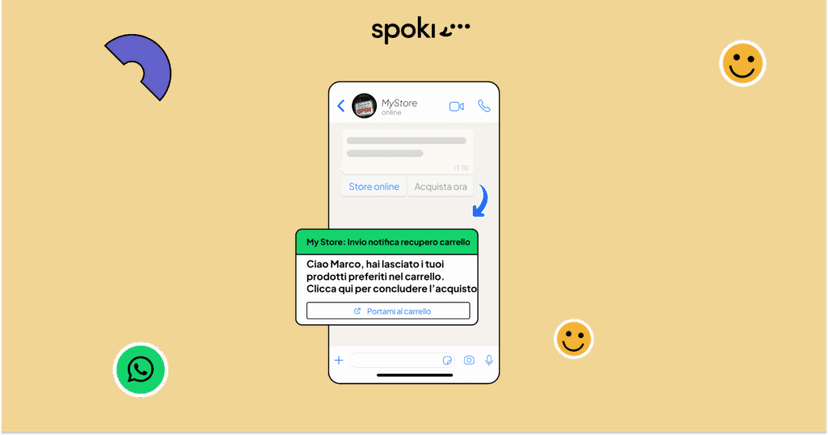
In this article, we will see how to create a winning automation to recover abandoned carts via a WhatsApp message.
Let’s assume we are using WooCommerce as our CMS; we can choose to set up cart recovery automation in three ways:
- Direct integration with Spoki
- Using Zapier
- Using Active Campaign Automations
Direct Integration with Spoki and WooCommerce
This is the simplest and most direct solution to automatically send a cart recovery message to the customer.
To enable this feature, you must first enable the integration on the Spoki platform and download the Spoki plugin on WooCommerce.
NB: In order for Spoki to send the abandoned cart recovery message, the customer must leave their phone number. Therefore, we recommend requiring the phone number during registration as mandatory.
Enable integration with WooCommerce
As a first step, we will enable the WooCommerce integration on the platform. In the integrations section, we will click on WooCommerce. An additional screen will appear on the left. We will select the statuses to be communicated to the customer and then enable the automation by clicking on “enable.”
Activate and customize the desired automations
Based on the statuses selected in the previous step, the platform will automatically generate automations with example start steps and template messages. The preset template contains 3 dynamic fields: name, checkout link, and support link.
We can modify the text of the template (requesting a new one in the template section – the dynamic fields contained in the example template can be reported in full or reduced, but it will not be possible to add others). It is also possible to add an identification tag within the automation.
We can also modify the message to be sent by replacing the existing template with a new one.
Once the message entered in the automation is the desired one, you need to enable the automations by clicking on “activate”.
2) WooCommerce and Spoki Integration via Zapier
This automation is particularly useful if we need to differentiate or add activities in addition to just sending the WhatsApp abandoned cart recovery message.
In this case, we will create a new Zap, setting “Order WooCommerce” as the trigger and setting the step.
Next, we insert a delay after which we schedule the sending of the cart recovery message.
Let’s add another step of “Finder WooCommerce” and set the fields that we are interested in monitoring, paying attention mainly to the Status. The status we will consider will be Pending or Failed.
Let’s add a further step, a filter that is activated for the Pending or Failed status. Finally, let’s add the Spoki step, configuring it with the automation we intend to start.
After sending the message with Spoki, we can add other steps such as sending the data to a Google Sheets or a CRM.
3. Use of Automations provided on Active Camping
For those who use marketing automation tools such as Active Campaign, you can use cart recovery automations already structured by the tool and add a step (via webhook or App CX) within the automation that sends a WhatsApp message via Spoki.
In this case, the first step is to integrate WooCommerce with the platform by going to the “settings” section -> “Connected integrations”.
Once connected, we can customize the cart recovery automation and insert the trigger that identifies the abandoned cart as a start step.
Subsequently, at a specific point in the funnel, we can insert a Webhook or App CX step that involves sending a WhatsApp message.
Do you already use WhatsApp in communication with your customers?
What results have you obtained? Write to us in the comments if you like!
Do you want to integrate WhatsApp Marketing into your business?
Start with a free account on Spoki and start your first campaigns with 5 € of included credit.
Or contact us to build your winning strategy together. We are waiting for you!