Working Hours Condition: Optimize WhatsApp Automation with Spoki
Content
In today’s fast-paced digital landscape, customer expectations for instant communication are higher than ever. However, businesses operate within defined working hours, and maintaining a human presence 24/7 is often impractical. This creates a significant challenge: how do you provide timely, relevant responses to customers on platforms like WhatsApp without overstretching your team or leaving customers in the dark outside of business hours?
Spoki understands this dilemma. That’s why the latest update (v19.20.0) introduces a powerful new feature: the Working Hours Condition for your If/Else steps in Spoki automations. This innovative condition empowers marketing managers, business owners, and e-commerce operators to create truly dynamic WhatsApp automation flows that intelligently adapt to your company’s operational schedule.
Imagine a scenario where a customer initiates a conversation or reaches a critical point in their journey during your lunch break or late at night. Previously, your automation might have sent a generic response or, worse, no response at all, leading to potential customer frustration. With the Working Hours Condition, Spoki automations can now distinguish between ‘during working hours’ and ‘outside working hours,’ ensuring every customer interaction is handled appropriately and efficiently, aligning perfectly with your operational capacity.
Understanding the Working Hours Condition in Spoki Automations
The Working Hours Condition is a game-changer for businesses leveraging WhatsApp Business API for customer communication. It allows your Spoki automations to make intelligent decisions based on your predefined company working hours. This means your automated messages, chatbot responses, and follow-up actions can be tailored to whether your team is actively available or not.
How it Works: Setting Up Your Dynamic Flows
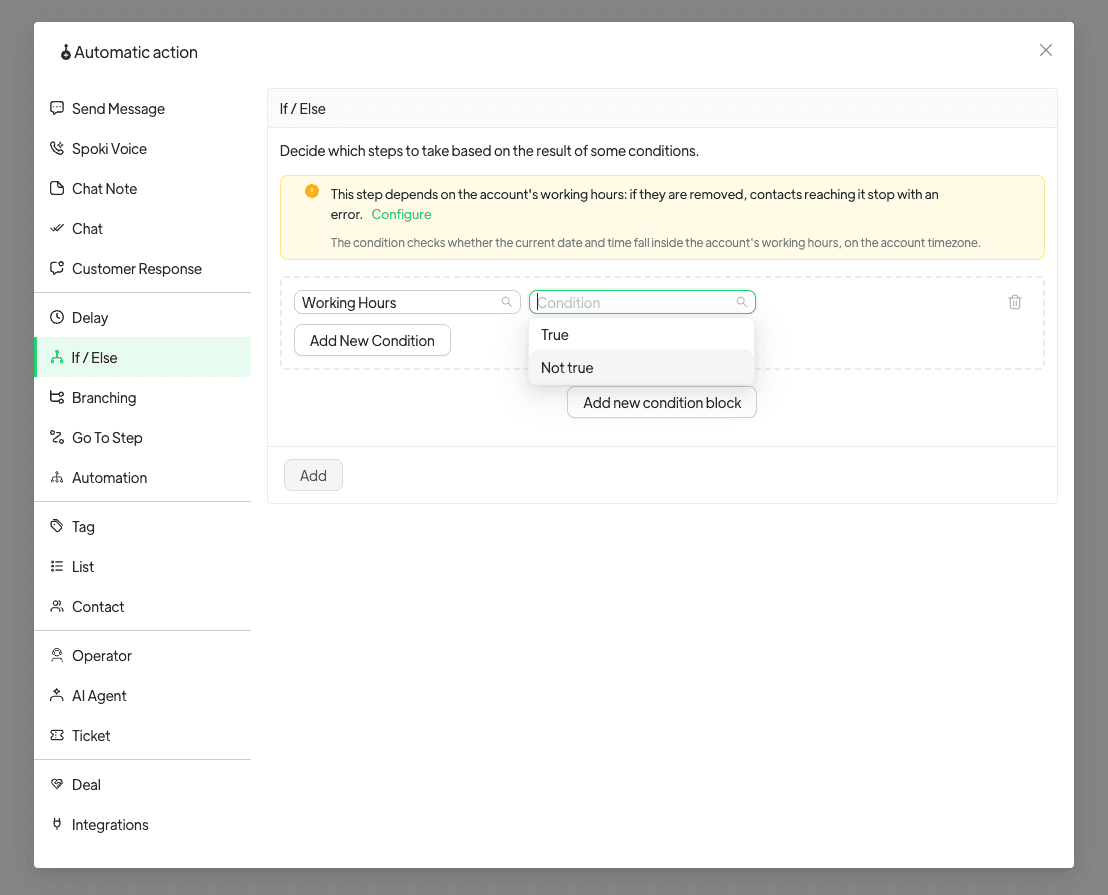
Implementing the Working Hours Condition is straightforward within Spoki’s intuitive automation builder. When configuring an If/Else step in your automation, you will now find ‘Working Hours’ as a selectable condition. Here’s a quick guide:
- Open an existing or create a new If/Else step in your Spoki automation.
- In the condition selection, choose ‘Working Hours’.
- You then have two options:
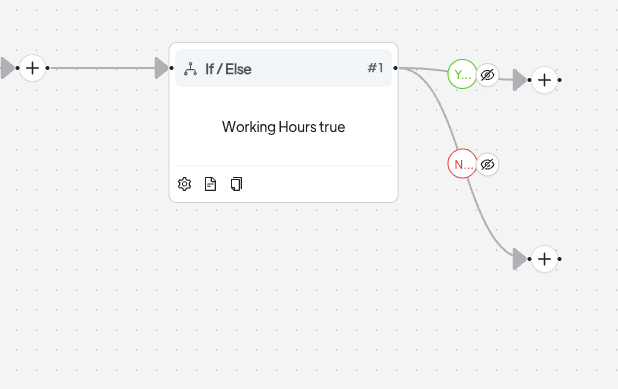
- Select ‘True’ if you want the ‘If’ branch of your automation to execute specifically during your company’s working hours.
- Select ‘Not true’ if you want the ‘If’ branch to execute when the contact reaches this step outside of your company’s working hours.
There are no other fields to fill in. Spoki automatically reads the current time in your account’s timezone and applies the same working hours configured in your company settings. This ensures consistency with other Spoki features, such as the Non-working hours trigger, so a step and a trigger always agree on when your business is open.
Prerequisites: Setting Your Company’s Working Hours
For the Working Hours Condition to function, your company’s working hours must be properly configured in your Spoki company settings. If these hours are not set, the ‘Working Hours’ option will appear greyed out in the list of fields within the If/Else step, accompanied by a helpful hint on where to configure them. It’s crucial to maintain these settings, as removing them later will cause contacts reaching a step that already uses this condition to stop with an error, preventing them from being sent down a branch that no longer holds meaning.
Practical Use Cases for WhatsApp Automation with Working Hours
The flexibility offered by the Working Hours Condition unlocks a myriad of possibilities for optimizing your WhatsApp Business communication. Here are several practical examples:
1. Intelligent Customer Support Routing
Scenario: A customer sends a query via WhatsApp at 9 AM on a Monday (during working hours) versus 10 PM on a Saturday (outside working hours).
Automation Flow:
- If Working Hours is True: Route the customer’s message to a live agent, or trigger an automation that collects more details and notifies the relevant department for immediate follow-up.
- If Working Hours is Not True: Send an automated message acknowledging receipt, stating your business hours, and promising a response on the next business day. You could also provide a link to an FAQ page or a self-service portal.
This ensures customers always receive an appropriate response, managing expectations and improving satisfaction.
2. Dynamic Lead Qualification and Follow-up
Scenario: A potential lead completes a form on your website and opts-in for WhatsApp communication, triggering an automation.
Automation Flow:
- If Working Hours is True: Immediately send a personalized welcome message, ask qualifying questions via a chatbot, and if the lead is hot, notify a sales representative for a prompt live conversation.
- If Working Hours is Not True: Send a polite automated message thanking them for their interest, providing valuable resources (e.g., a product catalog or a case study), and informing them that a sales representative will contact them during business hours.
This prevents leads from going cold overnight and ensures timely engagement when your team is ready to convert.
3. Personalized Promotion and Offer Delivery
Scenario: You want to send a flash sale announcement or a limited-time offer to a segment of your audience.
Automation Flow:
- If Working Hours is True: Send the promotional message directly, as your customer service team is available to answer immediate questions or assist with purchases.
- If Working Hours is Not True: Delay the promotional message until the next working hour window, or send a teaser message with a countdown, prompting them to check back when your team is available to support their purchase.
This maximizes the impact of your promotions by aligning them with your team’s ability to support customer inquiries and purchases.
4. Appointment Reminders and Confirmations
Scenario: A customer schedules an appointment through your system, and you want to send a WhatsApp confirmation and reminder.
Automation Flow:
- If Working Hours is True: Send the confirmation message immediately. If the appointment is within the next 24 hours, send a reminder message with an option to reschedule or confirm, and have a live agent ready to assist if they reply.
- If Working Hours is Not True: Send the confirmation, but if a reminder is due outside working hours, delay it until the next working day. For any replies outside working hours, send an automated message acknowledging receipt and promising a response during business hours.
This ensures important communications are delivered at opportune times, reducing no-shows and improving customer experience.
5. Emergency or Urgent Inquiry Handling
Scenario: While the primary goal is to manage non-urgent inquiries, certain businesses might have an emergency contact protocol.
Automation Flow:
- If Working Hours is True: Route to standard support.
- If Working Hours is Not True: If the customer’s message contains keywords indicating urgency (e.g., ’emergency’, ‘urgent’, ‘blocked account’), the automation could branch to an alternative path. This path might provide a dedicated emergency contact number, direct them to an urgent self-service portal, or even trigger an alert to an on-call team member (though this requires careful setup and consideration of team availability).
This advanced use case requires careful planning but demonstrates the power of conditional logic for critical scenarios.
Maximizing Efficiency with Spoki’s WhatsApp Business API Integration
The Working Hours Condition, combined with Spoki’s robust WhatsApp Business API Documentation, empowers businesses to create sophisticated, customer-centric communication strategies. By leveraging chatbots and automated messaging, you can:
- Improve Response Times: Even outside working hours, customers receive an immediate, relevant response, setting proper expectations.
- Enhance Customer Satisfaction: Customers feel heard and valued, knowing their inquiry is being handled appropriately, regardless of when they reach out.
- Boost Team Productivity: Your team focuses on live interactions during working hours, without the pressure of responding to every message immediately outside of those times.
- Increase Conversion Rates: Timely and context-aware communication keeps leads engaged and guides customers through the sales funnel more effectively.
- Maintain Brand Professionalism: Consistent and well-managed communication reinforces your brand’s commitment to excellent service.
Spoki’s platform is designed to streamline your WhatsApp operations, allowing you to build intricate automation flows that adapt to various customer journeys and business needs. For more insights into optimizing your WhatsApp strategies, explore the Spoki Blog, where you’ll find a wealth of information on best practices and new features.
Conclusion: Smart Automation for Smarter Business
The Working Hours Condition in Spoki (v19.20.0) is more than just a new feature; it’s a strategic tool that allows your WhatsApp automations to become truly intelligent and responsive to your business’s operational realities. By enabling your If/Else steps to branch based on your working hours, Spoki helps you deliver a seamless customer experience, optimize your team’s efficiency, and ensure your automated communications are always timely and contextually appropriate.
Whether you’re a marketing manager looking to refine lead nurturing, a business owner aiming to enhance customer support, or an e-commerce operator striving for better engagement, the Working Hours Condition provides the flexibility you need to align your WhatsApp strategy with your business schedule. Stop letting valuable customer interactions fall through the cracks outside of business hours. Embrace smart automation and elevate your customer communication.
Ready to transform your WhatsApp communication strategy? Start for free with Spoki — no credit card required.