
Transform the way you communicate with your customers in Marketing, Sales and Support activities.
Maximize the effectiveness of every message with Spoki's WhatsApp.
1. Automation of the personalized customer experience.
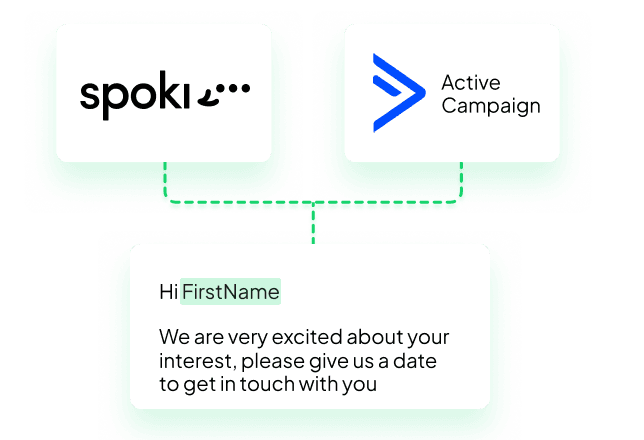
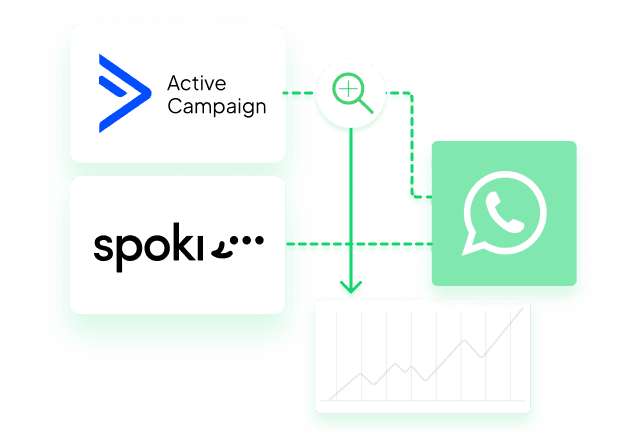
The Spoki and ActiveCampaign integration automates and personalizes WhatsApp communications based on customer behavior, making them timely and relevant.
2. Optimizing Sales and Marketing Strategies.
Spoki and ActiveCampaign allow you to implement effective sales and marketing strategies, ensuring automatic and personalized follow-ups on WhatsApp for constant attention to each customer.
3. Greater efficiency and productivity.
Spoki and ActiveCampaign optimize operations by eliminating repetitive manual tasks and allowing teams to focus on higher-value tasks, increasing efficiency.
4. Improvement of customer engagement and loyalty.
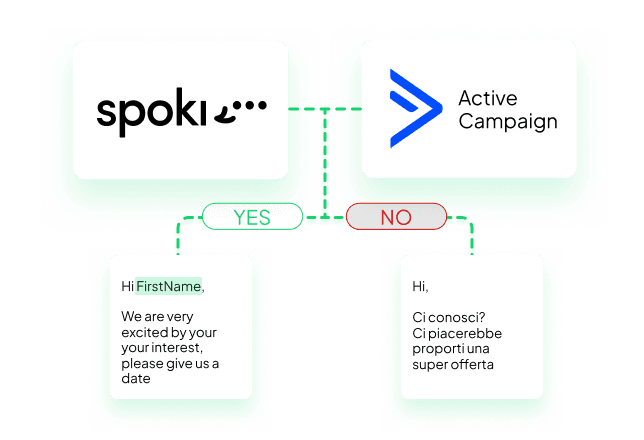
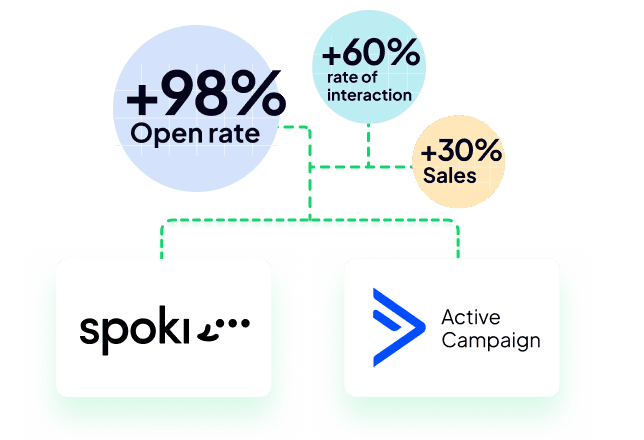
The Spoki-ActiveCampaign integration enhances engagement with targeted messages, improving the likelihood of conversions and customer loyalty.
5. Seamless integrations across your stack.
Combine the power of Spoki and ActiveCampaign with your existing CRM, analytics and ecommerce tools to create a connected customer journey from acquisition to loyalty.
6. Data-driven testing and analytics.
Measure, test and iterate your messages and automations. Use insights to continuously improve performance and deliver experiences your customers love.
What can you do with Spoki and Active Campaign?
By integrating Spoki with ActiveCampaign via APP CX, you can fully exploit the WhatsApp channel to develop your business.
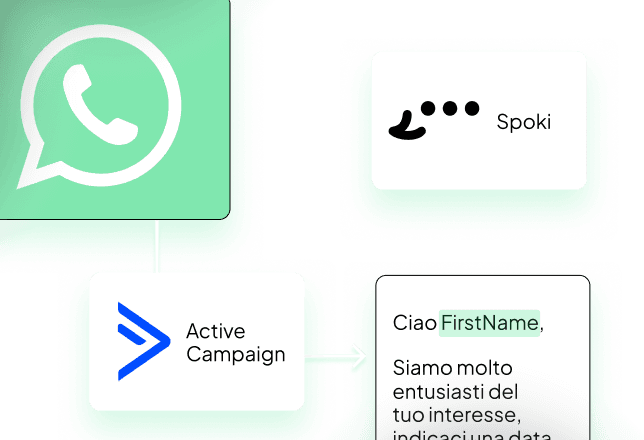
WhatsApp Chat directly embedded in ActiveCampaign, in the “Offer Details” and “Contact Details” screens.
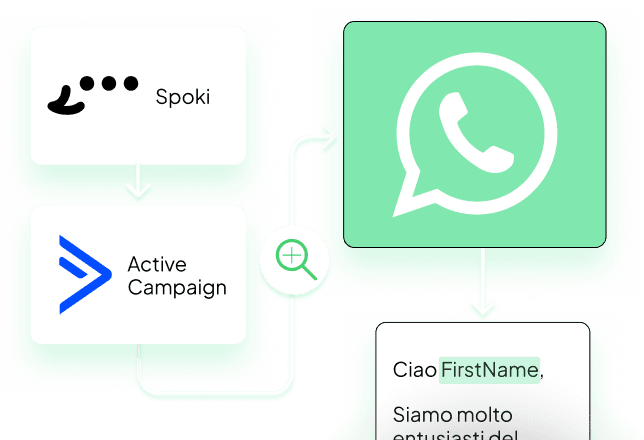
Add Spoki step in ActiveCampaign automation: Send automatic WhatsApp messages – Update Contact on Spoki – Start Spoki automation.
Add ActiveCampaign step in Spoki automation: Start AC when triggered on Spoki – Track events triggered by Spoki in every contact on AC.
Configuration | Use WhatsApp Chat in ActiveCampaign
- Activate this integration in the upper right corner;
- Go to ActiveCampaign > Settings > Developer > API Access;
- Copy the values and enter them in the “Settings” section at the top of the same page and press “Save”.
- Go to the details of a contact or offer where you will find a section dedicated to the WhatsApp chat;
- Spoki will identify the contact via email or phone number. If it does not already exist on Spoki, you can start a new chat without leaving ActiveCampaign.
Who can access the chat in ActiveCampaign?
Normally Spoki looks for the user with the same email used in ActiveCampaign; if a user with the same email does not exist in Spoki, then they will not be able to access the chat.
Do you want to give everyone access to the chat in ActiveCampaign?
- Go to Spoki > Users and Roles > Add;
- Role: Chat Manager; User Type: Service User; Name: ActiveCampaign;
- Click on "Add";
- Now all users who have access to the "Contact" or "Opportunity in ActiveCampaign" detail will be able to use the chat.
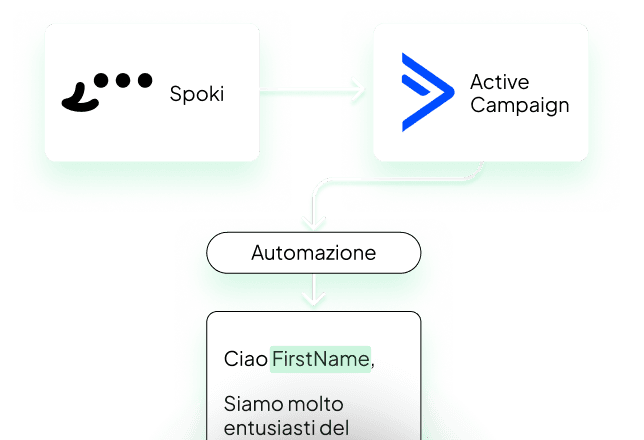
Configuration | Add Spoki step in AC automation
You can start Spoki from ActiveCampaign via the Spoki CX APP step, the contact will be created or updated.
Actions to take on Spoki:
- Activate this integration in the upper right corner;
- Create a new automation or select an existing one;
- Click on Add start step / Integration / ActiveCampaign;
- Copy the Automation ID
- Add at least one automatic action (e.g., Send Template);
- Press "Save".
Actions to take on ActiveCampaign:
- Create a new automation or select an existing one;
- Click on "+" to add a step;
- Click on "App CX / Spoki – Start a WhatsApp Automation";
- Connect using the secret you find above;
- Enter the Automation ID;
- Press "Save".
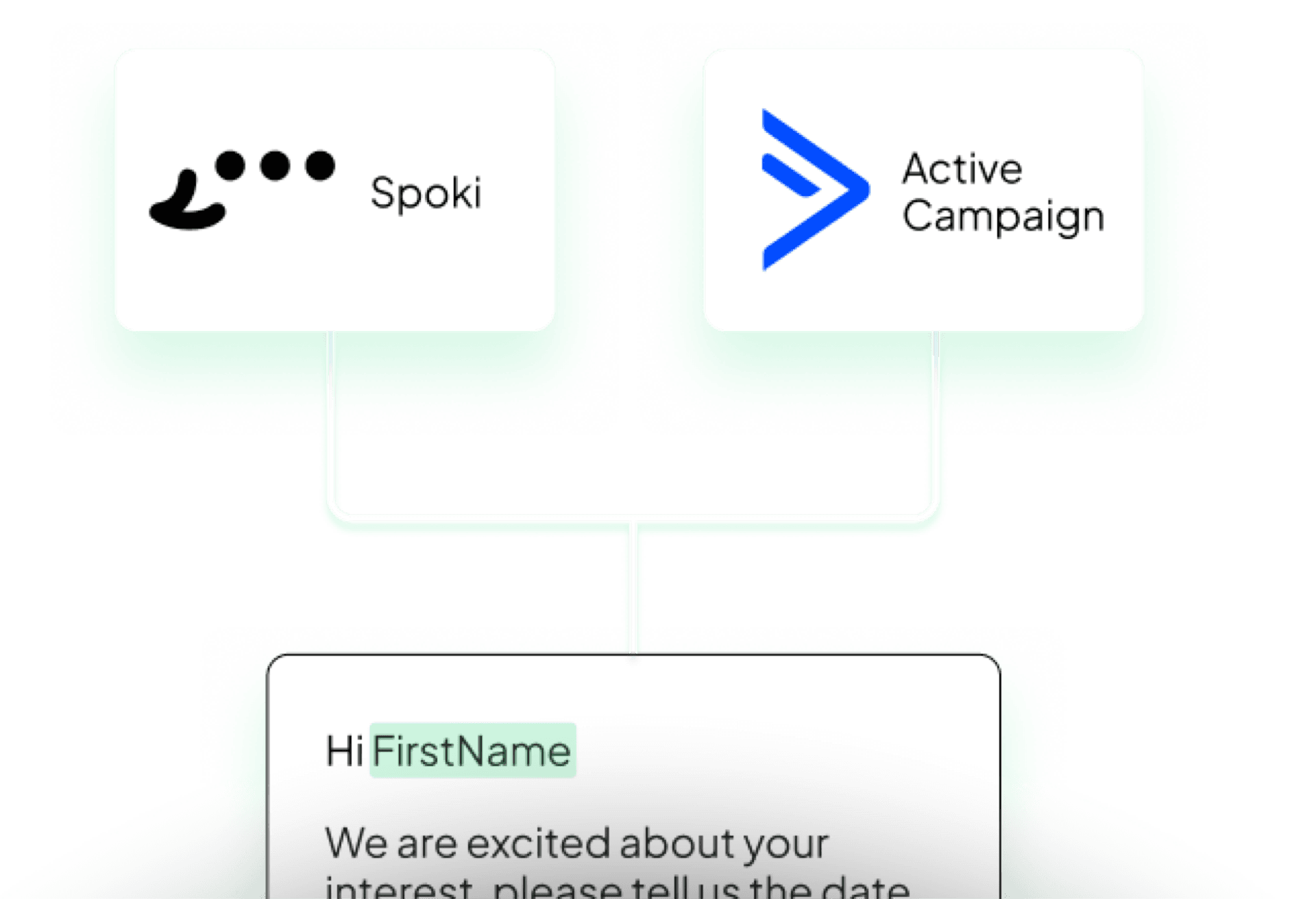
Configuration | Add AC step in Spoki automation
You can start ActiveCampaign via the Spoki CX APP step. The contact will be updated (checked via email or phone) or created if it has an associated email in Spoki.
Actions to take on Spoki:
- Activate this integration in the upper right corner;
- Go to ActiveCampaign > Settings > Developer > API Access;
- Copy the values and enter them in the 'Settings' section at the top of this page. Click 'Save'.
- Create a new automation or select an existing one;
- Click on 'Your automated action' in ActiveCampaign;
- Save the automation and copy the Step ID shown in the ActiveCampaign step;
Actions to take on ActiveCampaign:
- Create a new automation or select an existing one;
- Click on 'Your automated action' > ActiveCampaign;
- Click on Add Trigger > App > Spoki Automations > Spoki Automation created;
- Click on 'Segment Spoki Automations';
- Add Step ID as a condition | Is | paste the Step ID copied earlier;
- Press 'Save'.
Start now for free and turn every message into a valuable interaction.
Start with a free account on Spoki and start your first campaigns with 5 € of included credit.
Or contact us to build your winning strategy together. We are waiting for you!
Book the Call